
This article explains how to download and install previous versions of Blender, and how to use multiple versions together.
1. What is a Previous Version of Blender?
A new version of Blender is released every few months.
Therefore, previously released versions are kept in the official archive and are available for download at any time.
1.1 Why are Previous Versions Needed?
You may need to use a previous version of Blender in the following situations:
- To Run Specific Add-ons: Add-ons are convenient extensions, but they are not always compatible with the latest version of Blender. By using a version confirmed to work, you can use add-ons without issues.
- To Open Older Files Without Issues: When opening a “.blend” file created in an older version with a new version, the display may break or it may not function properly. Using the version it was created in allows you to open the file without issues.
- To Replicate Past Tutorials: By using the same version as instructional videos or textbooks, you can proceed with the tutorial without being confused by differences in the UI or features.
1.2 Which Version Should I Choose?
Blender versions are roughly classified into the following three types.
If you are unsure which version to choose, please refer to the following.
1.2.1 Latest Version
The Latest version has the advantage that all the newest features can be used, and improvements in performance and bug fixes can be expected.
On the other hand, the disadvantage is that add-ons are often incompatible and cannot be used, and information such as tutorial articles and videos may be scarce.
1.2.2 LTS Version
The LTS (Long Term Support) version is treated as a previous version in the sense that the latest features cannot be used, but it is extremely stable because support such as bug fixes continues for about two years.
Add-ons are often made based on the LTS version, and there is a lot of information such as tutorial articles and videos.
1.2.3 Previous Version
Previous versions other than LTS are past versions for which development and support have already been completed.
These are for those who have a clear purpose, such as “I want to perfectly replicate an old tutorial video” or “The add-on I want to use doesn’t work in the latest version.”
1.3 Can Multiple Versions be Used Together?
In Blender, multiple different versions can be used together.
For example, it is possible to keep your usual LTS version environment as is, and add the latest version to try it out a little.
2. Downloading Previous Versions
2.1 Downloading the LTS Version
If you want to download an LTS version, first open the page below.
https://www.blender.org/download/lts/
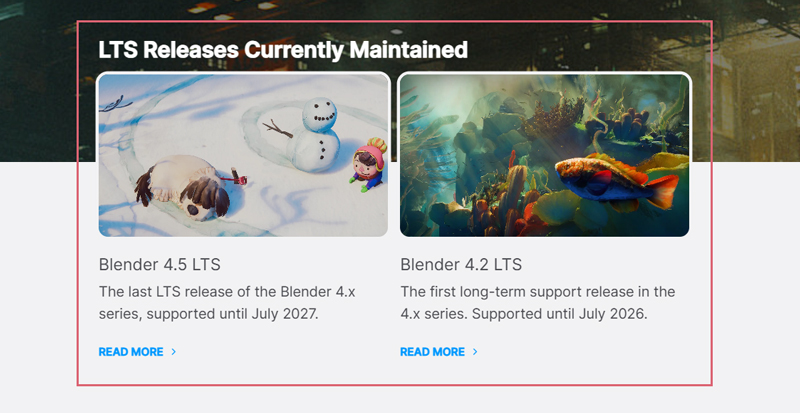
There is an LTS version under where it says “LTS Releases Currently Maintained” (see the image below), so click it (as of March 2026, two versions are available: 4.5 and 4.2).
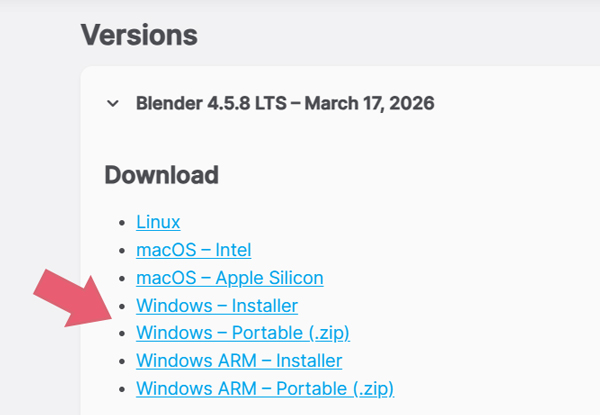
Once the page changes, select your OS from the “Download” section, and choose either “Installer” or “Portable (.zip)” to download the file (see the image below).
The difference between “Installer” and “Portable (.zip)” will be explained in “2.3 Differences in Downloaded Files.”
A donation page titled “Give Back to Blender” will appear, but you can skip it for now.
If you know which version the LTS is, you can also download it using the method introduced next in “2.2 Downloading Previous Versions Other Than LTS.”
2.2 Downloading Previous Versions Other Than LTS
When you go to the Blender site below, click on where it says “Download Any Blender” (see the image below).
https://www.blender.org/download/previous-versions/

Alternatively, go directly to the site below.
https://download.blender.org/release/
When you go to the site, a list of downloadable versions will be displayed, so first select the version you need, and then download the one that matches your environment.
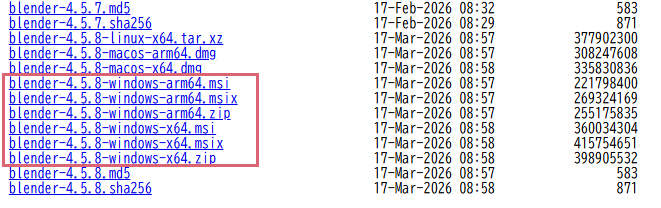
For Windows, there are three types: “.msi”, “.msix”, and “.zip”. The difference between these will be explained in “2.3 Differences in Downloaded Files.”
For example, if you want to download the .zip version of Blender 4.5.8 for Windows (64bit), first select “Blender4.5”, and then click “blender-4.5.8-windows-x64.zip” to download the file (see the image below).
2.3 Differences in Downloaded Files
The three file formats for Windows have the following differences.
The notation varies depending on the official download page, but the file downloaded as an “Installer” is the “.msi”, and the file downloaded as a “Portable (.zip)” is the “.zip”. They refer to the same types of files, just with different names.
If you use the “Installer” or “.msi”, Blender will be installed as a standard Windows app. It will also appear in the Windows “Installed apps” list, and uninstallation is also done from there.
If you use the “Portable (.zip)” or “.zip”, you can use Blender independently without leaving traces on your system. Uninstallation is also easy as you just delete the entire folder.
“.msix” is the next-generation version of “.msi” and seems to have features like “easy to install” and “leaves no trace on the computer when deleted,” but it also seems to have strict security making it difficult to make changes to folders or files.
Some versions do not have an “.msix”.
There is no fixed answer as to whether you should choose the “Installer” / “.msi” or the “Portable (.zip)” / “.zip”, but I personally use the “Portable (.zip)” or “.zip” because it is convenient to easily run and delete them when using multiple versions together.
I haven’t used the “Installer” or “.msi” much, and I don’t have practical experience or knowledge about bugs specific to the “Installer” or “.msi”, so this article will mainly focus on the “Portable (.zip)” or “.zip”.
3. Installing Previous Versions
3.1 Before You Launch: Differences Between “Using as Portable” and “Using as is”
Please extract (unzip) the downloaded ZIP file to your preferred location.
Running the “blender.exe” inside the extracted folder will launch Blender, but depending on the difference in where settings made in Blender’s Preferences and installed add-on files and settings are saved, please decide whether to proceed with “Using as Portable” or “Using as is” before launching.
3.2 Using as Portable
Open the extracted folder, and open the location where “blender.exe” is.
In that directory, create a new folder named “portable” (see the image below).
Making it portable is now complete.
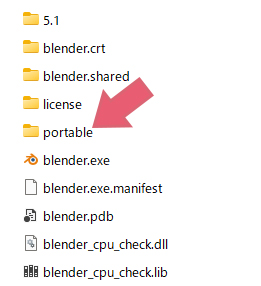
When you run “blender.exe” and change Blender settings or install add-ons, they will be saved in the created “portable” folder.
* For Blender 4.1 and earlier versions, open the folder with the version number located where “blender.exe” is, and create a folder named “config” inside it.
When using multiple versions together, it is convenient to add a shortcut for “blender.exe” to your Windows desktop or taskbar.
3.3 Using as is
If you just run “blender.exe” in the extracted folder as is, settings files and add-ons will be saved by version in the location below. “AppData” is a hidden file (hidden folder).
C:\Users\(Username)\AppData\Roaming\Blender Foundation\Blender\(Version)
There is no problem if you choose “Using as is”, but if you are reluctant to open hidden files (hidden folders), making it portable is recommended.
Deleting files during uninstallation is also easier if you make it portable.
If you want to make it portable later on, create a new folder named “portable” where “blender.exe” is located, and copy the folders inside the “AppData” version folder (like the “config” folder) into it.
If you are not using other versions of Blender, you may delete the “AppData” folder entirely, including the “Blender Foundation” folder, after copying.
4. Migrating Settings and Restoring to Factory Settings
This introduces how to migrate settings made in Blender’s Preferences, installed add-on files, and settings, as well as how to restore to factory settings (default) as a workaround for bugs caused by migrating settings.
4.1 How to Migrate Settings
4.1.1 Migrating when “Using as Portable”
Copy and paste the entire “portable” folder created during installation to the location where “blender.exe” of the target Blender is.
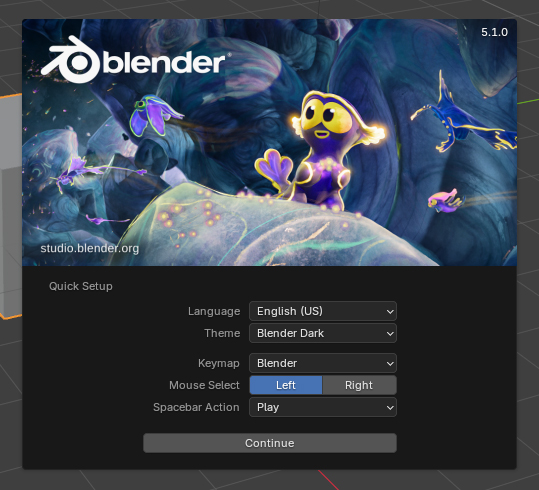
If you made it portable, the Splash Screen will not display “Import Blender (Blender Version) Preferences” as in the image below, so you need to manually copy and paste as described above.
4.1.2 Using as is
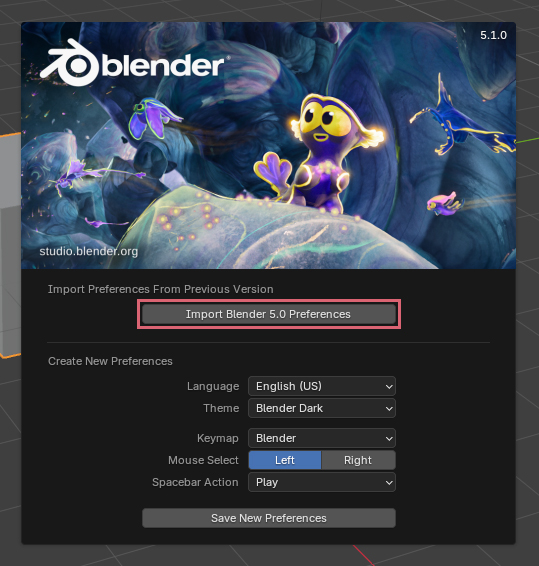
You can migrate settings by clicking “Import Blender (Blender Version) Preferences” on the splash screen that appears when you launch Blender (see the image below).
You can also migrate by copying and pasting the settings files from the version folder in “AppData”.
4.2 How to Restore to Factory Settings
Migrating settings is convenient, but if there have been major changes to Blender, bugs can occur such as the UI not displaying correctly, failure to launch, settings not being applied, or add-ons not functioning.
This is especially common when migrating settings from a newer version to an older version.
When the cause of a bug cannot be identified, you also need to consider deleting all migrated settings and restoring to factory settings once.
To restore to factory settings with Blender closed, if “Using as Portable”, delete all contents inside the “portable” folder (please keep the “portable” folder itself).
If “Using as is”, delete the folder with the version number located at the path below.
C:\Users\(Username)\AppData\Roaming\Blender Foundation\Blender\(Version)
If you use Blender’s File > Defaults > Load Factory Settings, add-on data will remain, so it will not return to a complete factory state.
4.3 After Restoring to Factory Settings
After restoring to factory settings, make necessary changes to the settings in Blender’s Preferences.
Add-ons may not function at all in unsupported versions, so please check the supported versions.
Once you restore to factory settings, you might forget which settings you changed or which add-ons you installed, so for those trying out various versions, it is recommended to keep notes.
5. Uninstalling Previous Versions
5.1 “Using as Portable”
If you are using Blender as a portable version, please delete the downloaded ZIP file and the extracted folder.
5.2 “Using as is”
If you chose “Using as is” without making it portable, please delete the downloaded ZIP file and the extracted folder, and then delete the folder with the version number located at the path below.
C:\Users\(Username)\AppData\Roaming\Blender Foundation\Blender\(Version)
If you do not plan to use Blender in the future, you can delete the entire “Blender Foundation” folder.
6. Precautions When Using Multiple Versions Together
In addition to the bugs caused by migrating settings introduced in “4. Migrating Settings and Restoring to Factory Settings”, I have compiled points to be aware of when using multiple versions together.
6.1 File Compatibility
A “.blend” file may not open properly in versions other than the one it was created in.
Please be careful, because if you overwrite and save the file while it’s in a broken state such as an incorrect display, it may not open properly even if you return to the original version.
This is especially common when opening a “.blend” file created in a newer version with an older version.
If you save and it no longer opens properly in any version, recover data by using File > Append to import individual assets such as objects or materials, or exporting and importing in formats like FBX or OBJ.
6.2 File Association
When opening a “.blend” file by double-clicking, if you are using multiple versions together, it may not open in the version you want.
Therefore, instead of double-clicking, launch the version of Blender you want to use first, and use File > Open, or use the drag-and-drop method to open it.
7. About Alpha and Beta Versions
Alpha and Beta versions can be downloaded from the location below.
https://builder.blender.org/download/daily/
As indicated by “Use at your own risk.”, I think it is better to use Beta and Alpha versions for trying out new features rather than for regular use.
That concludes “Downloading, Installing, and Managing Multiple Previous Versions” of Blender.


Comments